



What to Do When Your Hosting Provider Has an Outage
A website outage is one of the most stressful events an online business owner can face. Every minute your site is down can mean lost revenue, damaged credibility, and frustrated customers. The key isn't just preventing downtime—it's knowing exactly what to do when it happens. This guide is your action plan. We'll walk you through how to diagnose the problem, communicate effectively with your host and your audience, and take steps to prevent future incidents.
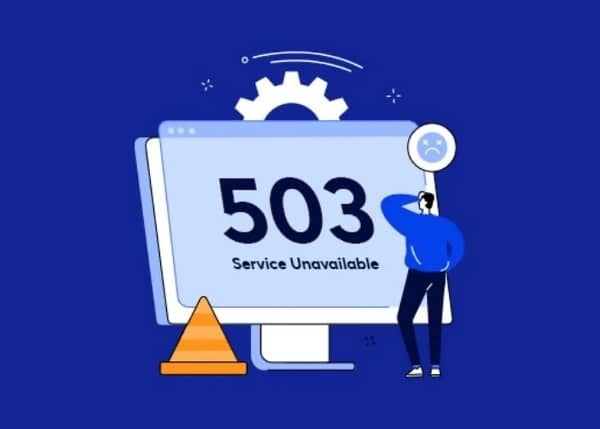
Step 1: Diagnose the Problem - Is It Your Host or Just You?
Before you jump to conclusions and declare a full-blown hosting outage, your first step is to confirm the scope of the problem. Often, the issue can be local to your own computer or network. Running through this quick checklist can save you time and unnecessary stress.
Initial Troubleshooting Checklist:
- Clear Your Browser Cache: Your browser might be holding onto a cached version of an error page. Do a hard refresh (Ctrl+F5 on Windows, Cmd+Shift+R on Mac) or clear your cache completely.
- Try a Different Browser/Device: See if the site loads on a different browser (e.g., Chrome, Firefox, Safari) or on your smartphone using cellular data instead of your Wi-Fi. If it works on your phone, the problem is likely with your local network or computer.
- Check Your Internet Connection: It sounds simple, but make sure you can visit other websites. A brief hiccup in your own internet service could be the culprit.

Use an External Uptime Checker Tool
If your site is still down after the initial checks, it's time to use an external tool to verify. These services attempt to access your website from multiple locations around the world, giving you an objective answer to the question, "Is it down for everyone or just me?"
- Down for Everyone or Just Me: The classic, simple tool found at downforeveryoneorjustme.com. Just enter your URL for a quick check.
- IsItDownRightNow?: A similar tool at isitdownrightnow.com that provides a bit more detail, including response time and a history of past outages.
- whatsmydns.net: If you've recently migrated your site or changed nameservers, a DNS propagation issue could be the cause. This tool lets you check DNS records from servers worldwide to see if they are pointing to the correct IP address.
Step 2: Check Your Hosting Provider's Official Channels
If external tools confirm your site is down, the next logical step is to see if your hosting provider has acknowledged a wider problem. The best hosting for small business and enterprise clients alike will have transparent communication channels for these exact situations.
- Official Status Page: This should be your first stop. Most reputable hosting companies maintain a dedicated status page that provides real-time information on server health, scheduled maintenance, and active incidents. Google "[Your Host Name] status page" (e.g., "Kinsta status page" or "SiteGround status"). This page will often give you an immediate answer and an estimated time for resolution, saving you from having to contact support.
- Social Media Accounts: Check your provider's official Twitter or Facebook accounts. For fast-moving, widespread outages, social media is often the quickest way for a company to push out updates to a large audience.
Step 3: Contact Support Effectively
If the status page and social media channels show no known issues, it's time to create a support ticket. To get the fastest and most helpful response, you need to provide the support team with high-quality information. Don't just say "My site is down!"
Information to Gather Before Contacting Support:
- Your Account Details: Your domain name and the email address or username associated with your hosting account.
- The Exact Error: What do you see when you visit the site? Is it a blank white screen? A 500 Internal Server Error? A 503 Service Unavailable message? A Database Connection Error? Be specific.
- A Timeline: When did you first notice the problem?
- Recent Changes: Did you recently update a plugin, theme, or the WordPress core? Did you edit any code? This information is vital for troubleshooting.
- Troubleshooting Steps Taken: Let them know what you've already done (e.g., "I've cleared my cache and confirmed the site is down using an external checker.").
By providing this information upfront, you enable the support agent to skip the basic questions and get straight to investigating the root cause, which is crucial for improving your site speed and stability once the issue is resolved.
Step 4: Communicate Proactively with Your Audience
While your host's technical team is working on a fix, your job is to manage your brand's reputation. Silence is not an option. Proactive communication shows your customers that you are aware of the problem and respect their time. It builds trust even in a crisis.
What to Communicate:
You don't need to share complex technical details. A simple, honest, and professional message is best.
Example Message Template:
"We are currently experiencing a technical issue that is affecting access to our website. Our team is aware of the problem and is working with our hosting partner to resolve it as quickly as possible. We sincerely apologize for the inconvenience and will post another update as soon as we have more information. Thank you for your patience."
Where to Post Your Message:
- Social Media: Post the update to all your active business profiles (Twitter, Facebook, LinkedIn, etc.).
- Email List: If your email marketing service is independent of your website hosting, send a brief email to your subscribers.
- Dedicated Status Page: For businesses where uptime is absolutely critical, consider a third-party status page service like Statuspage.io. This provides a reliable, off-site hub for all your communications during an incident.
Step 5: Post-Outage Review and Prevention
Once your site is back online, the work isn't over. Now is the time to learn from the incident and make your online presence more resilient.
Evaluate Your Host's Performance
How did your hosting provider handle the outage? Were they transparent? Was their communication clear and timely? Was the resolution swift? If you're consistently experiencing downtime or poor support with what you thought was affordable hosting, it may be time to reconsider. An outage's cost in lost sales and reputation can quickly outweigh the savings from a cheap plan. Investing in premium, fast website hosting with a strong Service Level Agreement (SLA) and 24/7 expert support is an investment in your peace of mind.
Implement Proactive Monitoring
Don't wait for your customers to tell you your site is down. Use an external monitoring service to get instant alerts via email, SMS, or Slack the moment your site becomes unavailable. Popular services include:
- UptimeRobot: Offers a generous free plan that checks your site every 5 minutes.
- Pingdom: A more advanced, premium tool that offers detailed performance insights and root cause analysis.
Strengthen Your Backup Strategy
This incident is a powerful reminder of the importance of backups. While your host should be taking backups, you need an independent, off-site backup strategy as well. This is your ultimate insurance policy. Use a trusted WordPress backup plugin like UpdraftPlus or a service like Jetpack Backup (formerly VaultPress) to automatically save a copy of your site to a third-party location like Google Drive, Dropbox, or Amazon S3.
Conclusion
A hosting outage is a test of your preparedness. By following this action plan—Diagnose, Check, Contact, Communicate, and Prevent—you can navigate the situation with professionalism and control. While you can't prevent every possible issue, you can build a more robust infrastructure and a clear set of procedures that protect your business, maintain customer trust, and turn a moment of crisis into an opportunity to demonstrate your company's reliability.
RELATED ARTICLES

Apache: The Backbone of the Web

DNS Records: Mapping Domain Names to IP Addresses

Keyword Mapping: Your Guide to Higher Website Ranking

Brute Force Attack: What It Is and How to Protect Yourself

The Future of Web Hosting in 2026 and Beyond

The Ultimate Glossary of Web Hosting Terms

Best Hosting for a Scalable Startup

Top 10 Best Web Hosting Providers for the US Market